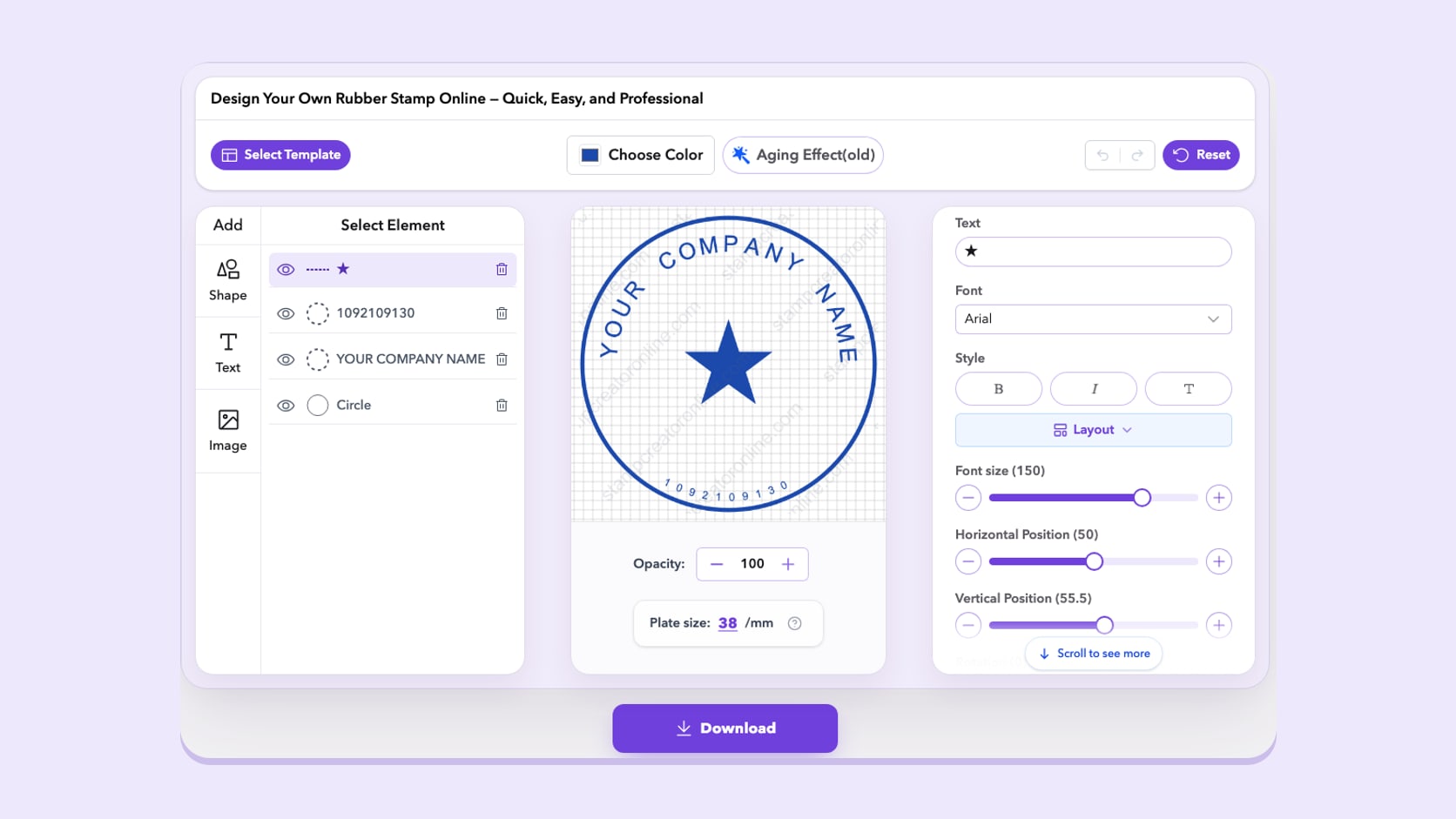
Stamp Creator Online has just had its largest update since launch. We rebuilt almost every page around the stamp maker so it is easier to pick a starting layout, understand what a template contains before you open it, and find a direct answer when a design or a file does not behave the way you expected.
The way the service works has not changed. You still design, edit and preview for free, and you pay only for the file you download. What has changed is how much help sits next to each step. This post walks through the update page by page, so you know where to find things and what is new.
A faster editor with undo and redo
Start with the editor, where the change you will notice first is undo and redo. Every edit can be stepped back and forward with the buttons above the canvas or with the usual shortcuts: Ctrl or Cmd + Z to undo, and Shift + Ctrl or Cmd + Z, or Ctrl + Y, to redo. Your history is kept while the tab is open, so an accidental change to a long company name is one click away from being reversed.
Text styling now sits in a single row next to the text you are editing, with the text layout options directly underneath. Text layouts and border styles are chosen from visual pickers that show what each option looks like, instead of a plain list of names. The settings panel tells you when there is more to scroll, sliders show a simple 0 to 100 scale, and four new decorative elements have been added to the symbol library. Tahoma has joined the font list, and Courier New now loads its full character set, including Cyrillic letters.
On phones, the layout has been reorganised around the canvas. The element buttons sit at the top, colour, ink wear and opacity sit under the stamp, and a selection bar keeps undo, redo and the layer list within reach. The layer list opens in place, and the layout adjusts when the on-screen keyboard appears so the text you are typing stays visible. Russian-language templates have also grown from 65 to 238.
My Library for every signed-in account
My Library, where you keep editable designs to reopen later, is now open to every signed-in account. A free account can keep up to 50 designs and sees a watermarked preview of each one. Monthly, yearly and lifetime plans keep up to 1,000 designs with clean, full-resolution images.
The library has also become easier to manage. You can search by name, pin the designs you use most, rename and delete them, and the list puts your most recently used work first. Saving the same design twice no longer creates a duplicate. Designs you saved before the update move into the new library automatically the first time you open it.
Every template now explains its own layout
All 334 templates have their own page, and until now most of those pages said little more than the template's name. Each one now describes the layout you are about to edit. You can see whether the main wording follows a curved ring or sits on straight lines, which sample words are in each line, how many rings, frames and divider lines make up the border, whether there is a symbol or logo slot, which fonts the sample uses and the plate size it starts at.
Under that summary are four steps written for that particular layout. They tell you which line to replace first, how to fit curved or straight text, whether to swap the symbol for your logo or leave it out, and how to set the final size before you choose a download. Each page also shows six more templates from the same collection, so you can compare similar structures without returning to the full catalogue.
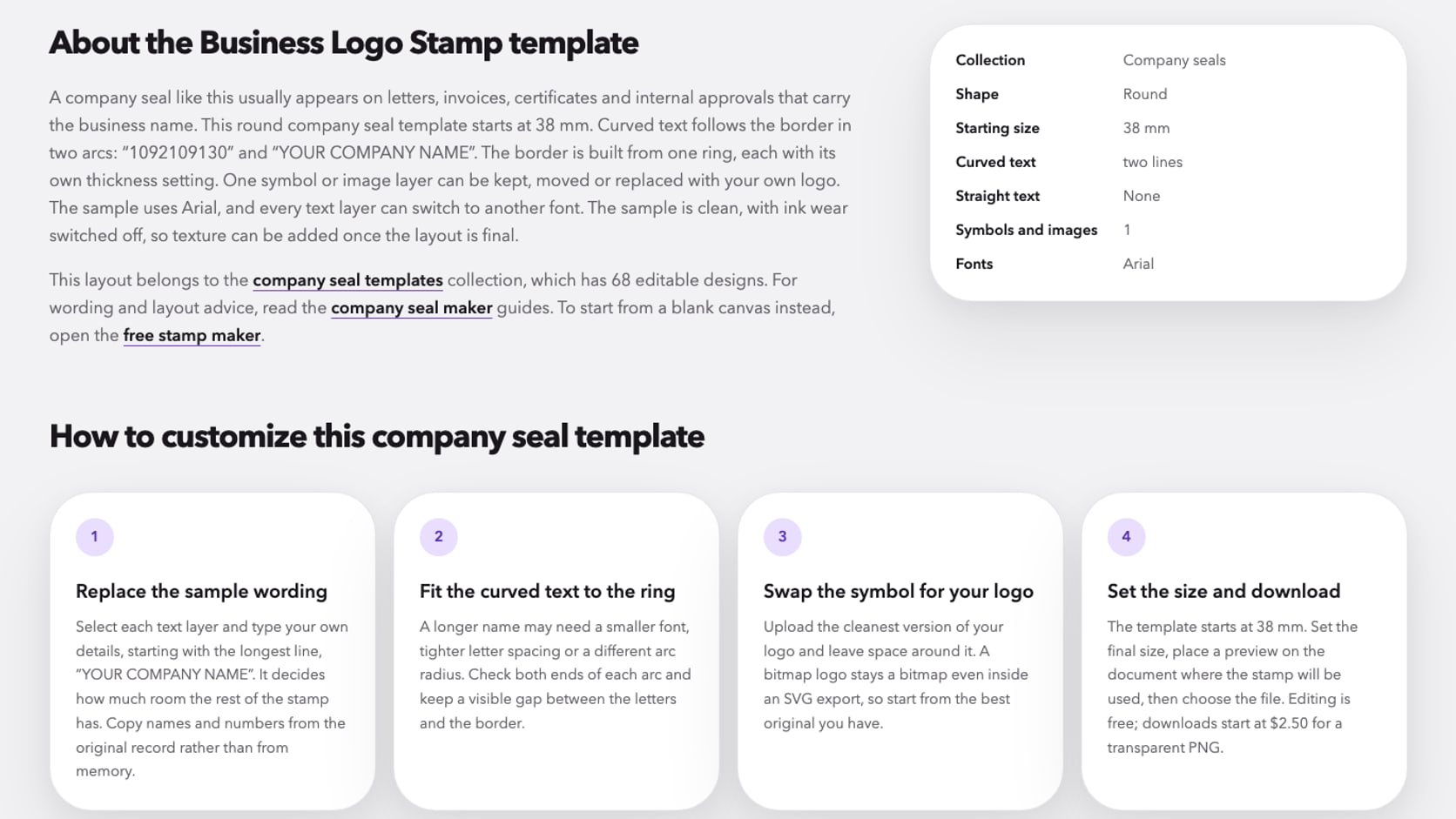
The information comes from the template file itself, not from a generic description. When a template has a long sample name on its ring, the steps start with that line. When it has no image layer, the page says so and suggests leaving the design text-only unless a logo really helps.
Template collections with practical guidance
The 24 collections, from company seals and notary stamps to address, wedding, library and date stamps, used to be little more than a grid of previews. Each collection page now opens with a short walkthrough for that type of stamp, examples of wording that suits it and answers to the questions people ask most often about it.
The company seal templates are a good example. The page explains what usually goes on a company seal, how to fit a long registered name around a ring, when a square or rectangular business stamp is the better choice and which file to download for a letter, a PDF or a manufacturer. Every collection also points to the closest related collections, so moving from a notary layout to a corporate one, or from an address stamp to a return-address idea, takes one click.
Guides organised by the job you are doing
The blog is organised into seven topics: stamp maker basics, designing in the browser, what you can do for free before paying, shapes and layout, rubber stamp artwork, company seals and digital stamp files. Each topic page now starts with a short orientation, shows templates that fit the topic, lists the articles and ends with the questions that come up most often.
Every article now finishes with related guides: three from the same topic and one from a neighbouring topic. If you arrive at a guide about fitting a long company name around a seal, the next suggestions include what to put on a company seal and how to keep a bilingual seal clear, plus one guide from the layout topic. You no longer need to go back to the topic list to keep reading.
Stamp image tools with clearer instructions
The six stamp image tools resize a stamp image, remove a paper background from a scan, add a solid background, crop empty space, rotate an image and convert an SVG stamp to PNG. Each tool page now explains when to use the tool, when it is better to go back to the design instead, and answers practical questions such as what pixel size suits a PDF or why a white rectangle still shows after adding a background.
The tools work on the file inside your browser tab and download a PNG without payment. They are meant for finishing touches on a file you already have; if the wording or border needs to change, the editable design is still the better place to fix it.
45 languages, completed and corrected
The home page, the editor and the pricing page are available in 45 languages. Eleven of those languages had shorter guides than the others. They now carry the complete set, written to read naturally rather than word for word from English.
We also reviewed the frequently asked questions in every language. Several translations still described an older version of the service, with prices and download details that no longer applied. They now match the current English text: the price of each package, the formats it includes, the fact that EPS is prepared separately, the seven-day refund rule and how to cancel a subscription. Where a translation used the word for a postage stamp instead of an ink stamp or seal, the wording has been corrected.
Navigation now lists every section in every language. Sections that do not have a translation yet, such as the template catalogue and this blog, open in English instead of disappearing from the menu.
Pricing information you can check in one place
The pricing page and its questions now state the same facts everywhere on the site. A transparent PNG costs $2.50. The vector package adds SVG and EPS for $2.90, and the complete package adds JPG, PDF and DOCX for $3.50. EPS files are prepared separately and become available when they are ready.
If you make stamps regularly, the monthly plan costs $15.90 for 30 days, the yearly plan $119 for 365 days and lifetime access $299 as a one-time payment. These include unlimited stamp creation and downloads, and room for up to 1,000 designs in My Library. A purchase can be refunded within seven days if no paid file has been downloaded, and any applicable tax is shown at checkout before you pay.
What has not changed
Designing, editing and previewing are still free, with no limit on how many versions you try. Every design stays as editable layers while you work, so changing an address or a department is an edit rather than a redraw. The site supplies digital files only; a physical stamp is made by the manufacturer you choose. And a designed seal is a graphic: whether it has an official role depends on the rules and the authority that apply to your organisation.
Tell us what to improve next
The quickest way to see the changes is to open a template you have used before, or start a new design in the online stamp maker and follow the steps on the template page. If something does not work as described, use the help button on any page or the Support page, and include the page, your browser and what you expected to see. Those reports decide what we improve next.