13 min read
Online Stamp or Scanned Impression: Which Should You Use?
Keep the character of an old impression or rebuild a reusable online stamp? Use source quality, revision needs and a simple size calculation to decide.
Read articlePractical guides for designing, editing and exporting a professional stamp directly in your browser.
These guides explain how to design a stamp in your browser: choose a layout, edit the text and logo, check the preview on a real page and export the right file. Open the online stamp maker in another tab and follow along with your own wording.
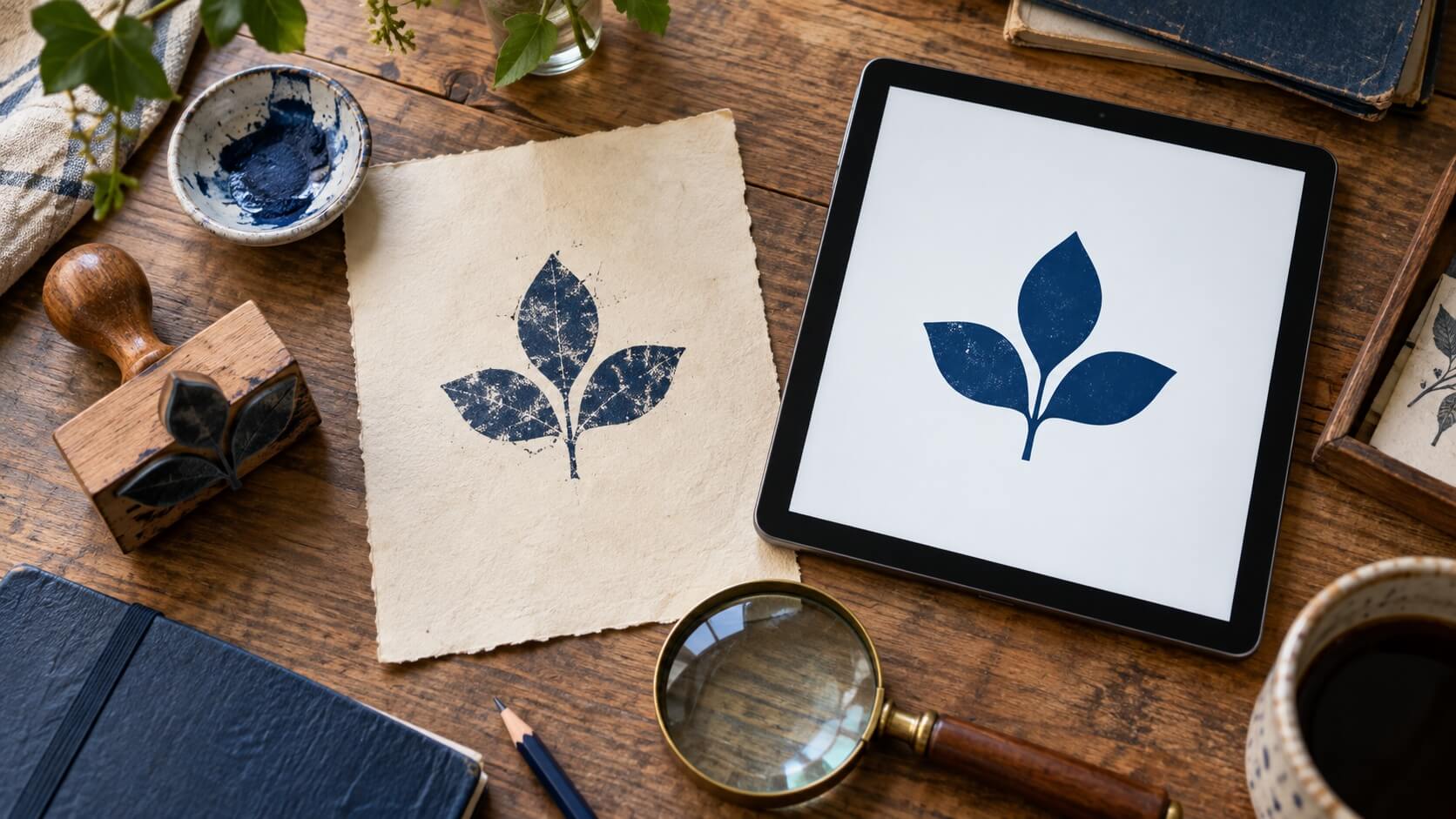
Keep the character of an old impression or rebuild a reusable online stamp? Use source quality, revision needs and a simple size calculation to decide.
Read article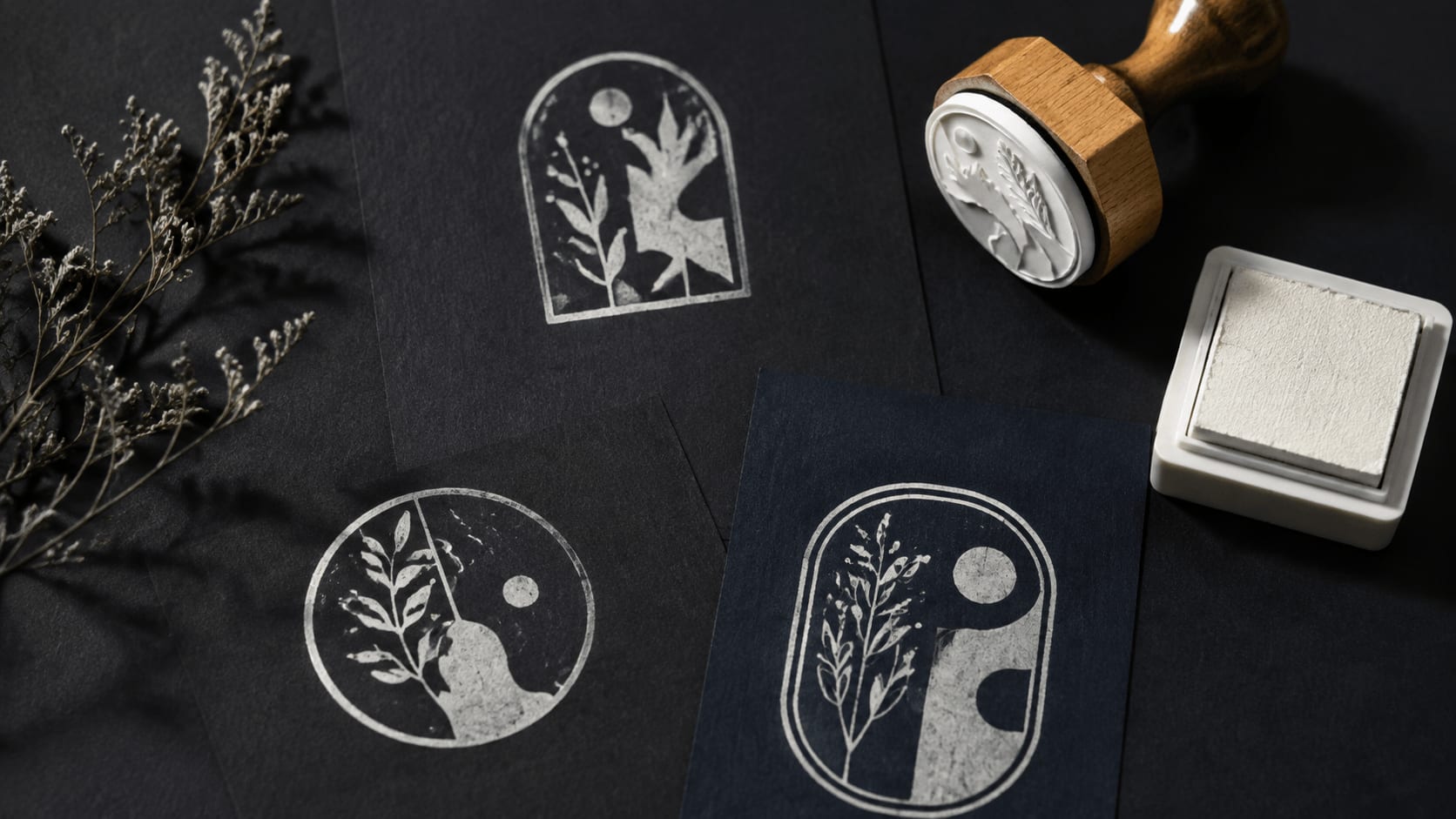
Plan a reverse stamp for dark paper without mistaking a clean screen mockup for a physical proof. Check gaps, opaque ink, stock, and supplier limits.
Read article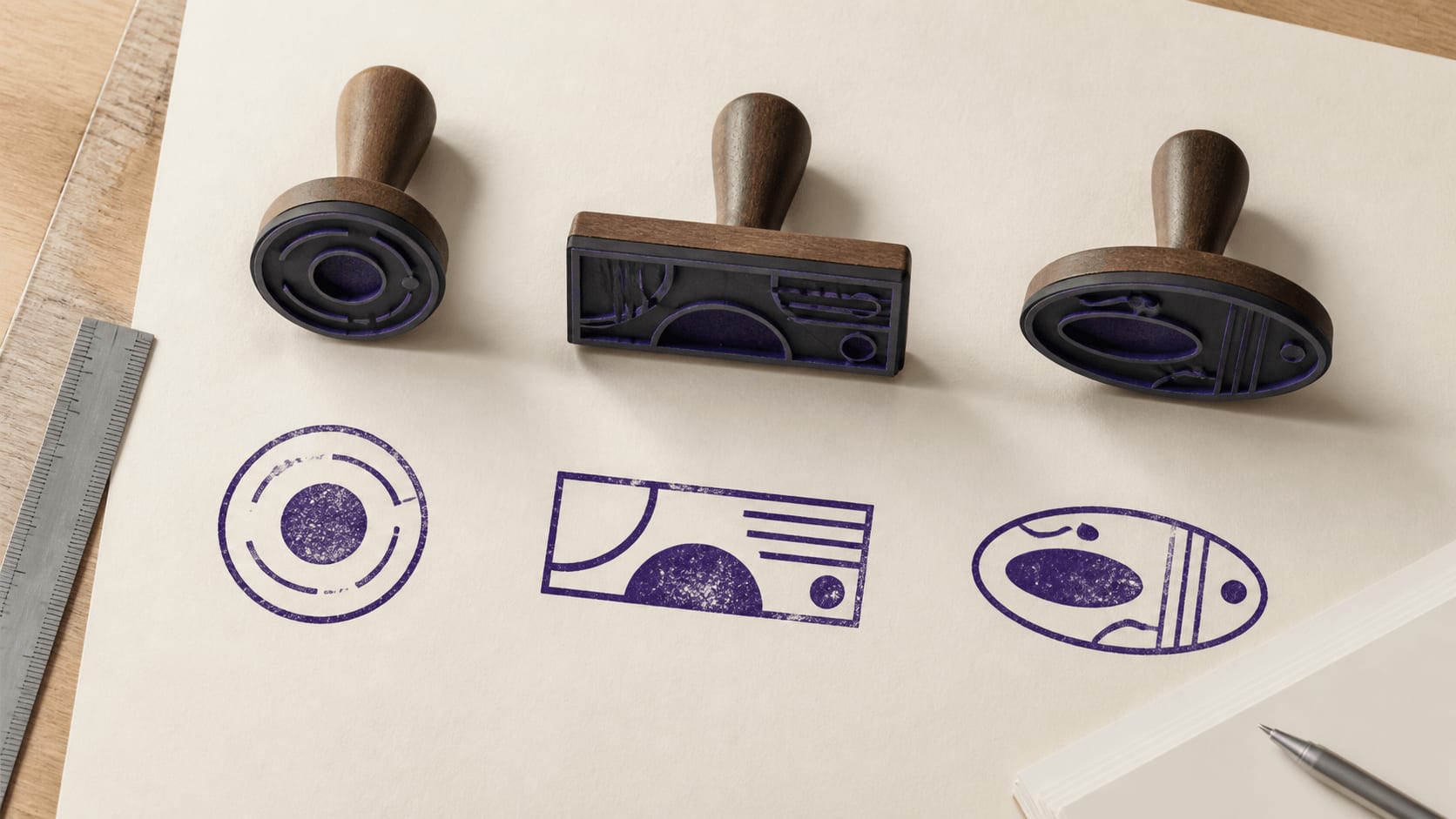
Use wording, hierarchy, destination space, and actual-size proofs to decide when a round, rectangular, oval, or special stamp layout fits best.
Read article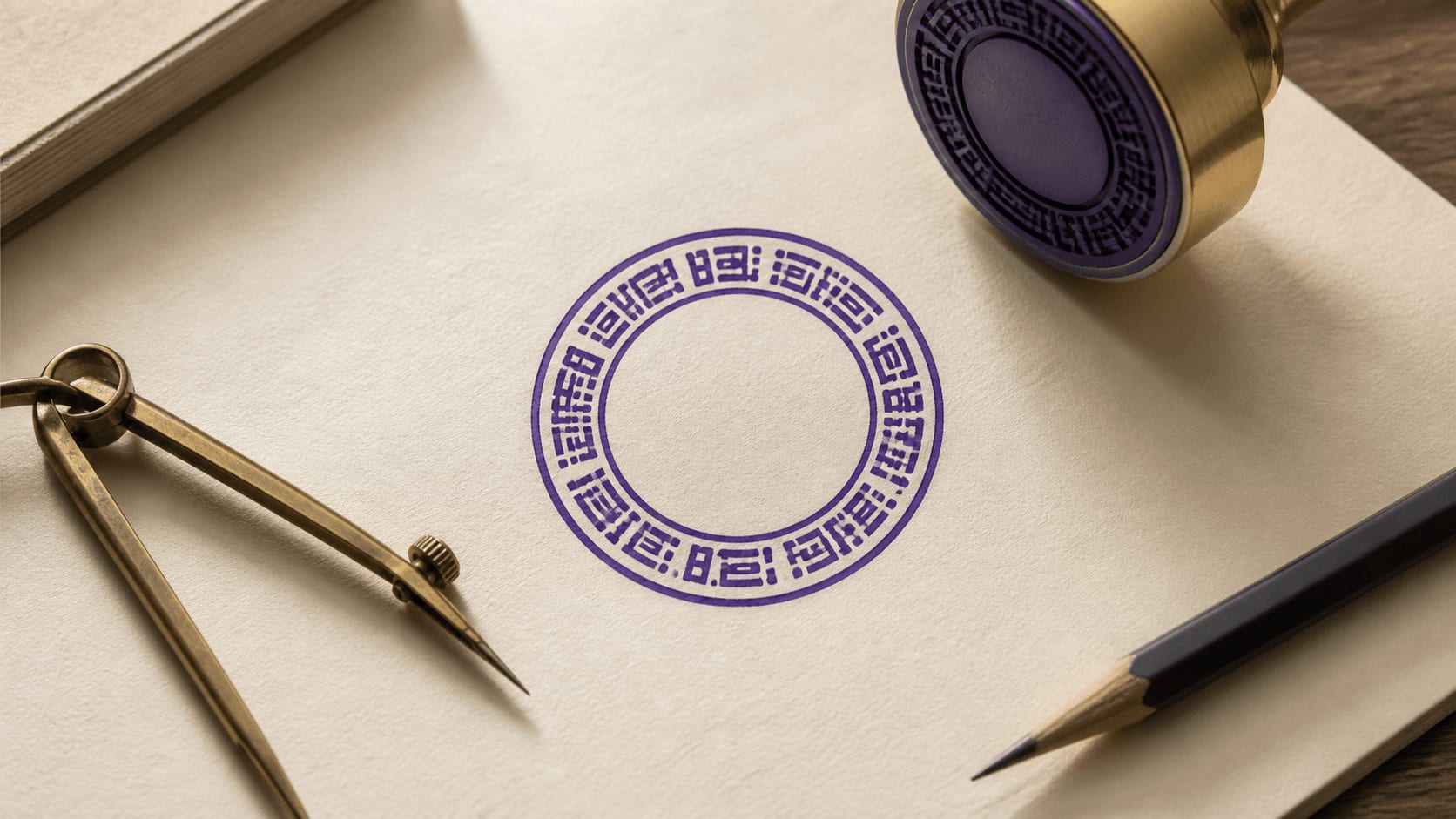
A practical troubleshooting order for curved stamp text: set the wording and path first, then refine direction, radius, spacing, font, and optical balance.
Read article
Plan stamp dimensions from the destination document, then verify millimetres, aspect ratio, PDF print scaling, Word placement, and production proofs.
Read article
Learn how transparent PNG and SVG files differ, where each one works best, and what to check before document placement, resizing, or production handoff.
Read article
Learn how to add believable ink variation without damaging names, dates, borders, or small details, then save clean and textured variants with purpose.
Read article
Learn how to choose the right logo file, simplify fine details, preserve spacing and export a stamp that remains recognizable at practical document sizes.
Read articleCustom stamp templates are deliberately general: a ring of text, a centre line and room for a symbol. They are a quick way to test your own wording online before you look for a more specific layout.
Browser editing is useful when you need to see how a new name, logo or border changes the whole stamp. Change one part at a time and check the preview after each adjustment. These guides follow that workflow, including the small details that are easy to overlook on a large screen. If the design will also become a physical rubber stamp, plan a clean master before adding a worn-ink effect.


Browser-based editing is most useful when you can judge changes against the information you actually need. Begin with the full name or message, then replace every smaller sample line. Keep the destination in mind: a mark for an invoice needs different spacing from a large packaging label.
Open the online stamp maker while you read and make one deliberate change at a time. A longer name may need a new text arrangement rather than a smaller font. A central logo may need less supporting text. These guides follow those everyday decisions so the browser preview becomes a practical design check, not just a place to imitate a sample.
Changing a company name, border or symbol belongs in the editable design. Cropping empty space or rotating a finished image is a different task. Knowing which one you need saves time and helps you preserve a useful source file.
The stamp image tools work on finished artwork. They can help prepare a copy for a document, but they do not restore the separate text and border layers in a PNG. If you have an SVG master, keep it before making a raster copy. If you need to change wording, return to the editor instead of trying to cover or erase letters in the exported image.
A desktop canvas gives you plenty of room to edit, but the final stamp may be much smaller. Look at the smallest line without relying on a large zoom. On a narrow screen, take time to check the complete design after changing a setting rather than judging only the selected element.
Then place the exported stamp in the destination document. Check whether the background is transparent, whether the image keeps its proportions and whether it covers nearby information. A mark that looks balanced by itself can still be too large for a signature area. Keep a copy of the original export before making document-specific size changes.
Names, departments, addresses and dates can change after a stamp is first made. An editable source makes those revisions easier than rebuilding the design from a small image. Give related versions clear names and review each one before exporting, especially when only a location line differs.
Compare the account-access and stamp download options if you regularly create or revise stamps. Read what is included for the access period you are considering, and distinguish saved designs from exported images. For occasional work, settle the layout first and choose the files for that job. These articles help you keep the browser workflow understandable from the first template to the final document copy.
First, pick a starting point: a template with a similar amount of text, or a blank canvas if you already know the layout. Second, type the real wording, starting with the longest line, because it decides how much room everything else has. Third, adjust the shape and border until the text sits comfortably inside them.
Fourth, add a logo or symbol if the stamp needs one, and leave space around it. Fifth, set the final size, preview the stamp on a white page and on the document it will appear on, then choose the download. The custom stamp templates cover the most common starting layouts, and each of them can be changed completely.
An online stamp maker needs no installation and keeps the design as editable layers while you work. That means a change of address or department is an edit, not a redraw. Any signed-in account can also keep designs in My Library and reopen them later: up to 50 on a free account, or 1,000 with clean images on a paid plan.
Browser editing also lets you check the stamp where it will be used. Open the document on the same screen, compare the size and colour, and go back to the design if something looks wrong. Choose a modern browser for the best results; the stamp maker explains what to do if a browser feature is missing.
A browser preview is the place to build the design, but the destination document is where spacing and background become real. Place a copy on the actual page and look for covered text, awkward white boxes or a mark that is too large for the signature area. If the artwork needs a new name or a different border, return to the editable design. If it only needs a tighter crop or a new orientation, the image tools can work on the finished file. Keep those two kinds of change separate so the original design remains easy to maintain.
Keep reading: stamp maker guides · free stamp maker guides · digital stamp files.
Stamp makers for this work: notary stamp maker · doctor stamp maker.
Choose a template or a blank canvas, type your wording, adjust the shape, border and logo, set the size and preview the result. The free stamp maker lets you do all of that in the browser before you decide on a download.
No. The editor runs in a current desktop or mobile browser. If your browser lacks a feature the editor needs, the page shows a compatibility notice so you can switch before you start designing.
Yes. Upload the cleanest version you have and keep space around it. A bitmap logo stays a bitmap even inside an SVG export. The logo stamp templates show layouts that leave room for a central image.
Yes. A transparent PNG works in most PDF and Word editors, and the complete package also includes PDF and DOCX versions. The guides to digital stamp files explain which copy suits each application.
A downloaded PNG or JPG is a flattened image, so keep the design in the editor or in My Library if you expect changes. Compare the stamp download packages to see which formats and access options fit your revisions.


