
You have finished the layout, checked the spelling, and reached the download choices. Now a simple question creates another round of doubt: transparent PNG vs SVG stamp—which file should you use? The answer depends on the next job. A file for placing a fixed-size mark in Word has different priorities from artwork sent to a manufacturer for resizing.
For most everyday document placement, a transparent PNG is the straightforward choice. For scaling, production handoff, or future editing in vector software, SVG is often more useful when the recipient supports it. Keep both when the workflow crosses those boundaries. This comparison explains the tradeoffs without treating one format as universally better.
Transparent PNG vs SVG stamp: the quick decision
- Choose transparent PNG for ordinary document insertion, email graphics, slides, and fixed-size digital use.
- Choose SVG when the design may be resized substantially, inspected as paths, or handed to a compatible production workflow.
- Keep a clean master and a practical placement copy when several people or applications will use the stamp.
- Ask the recipient or manufacturer which formats they accept before assuming that technically superior artwork will open in their system.
That decision covers many cases, but it helps to understand why the files behave differently. The distinction is not simply “web file” and “print file.” It is mainly about pixels, paths, compatibility, and the amount of control the next person needs.
What a transparent PNG stores
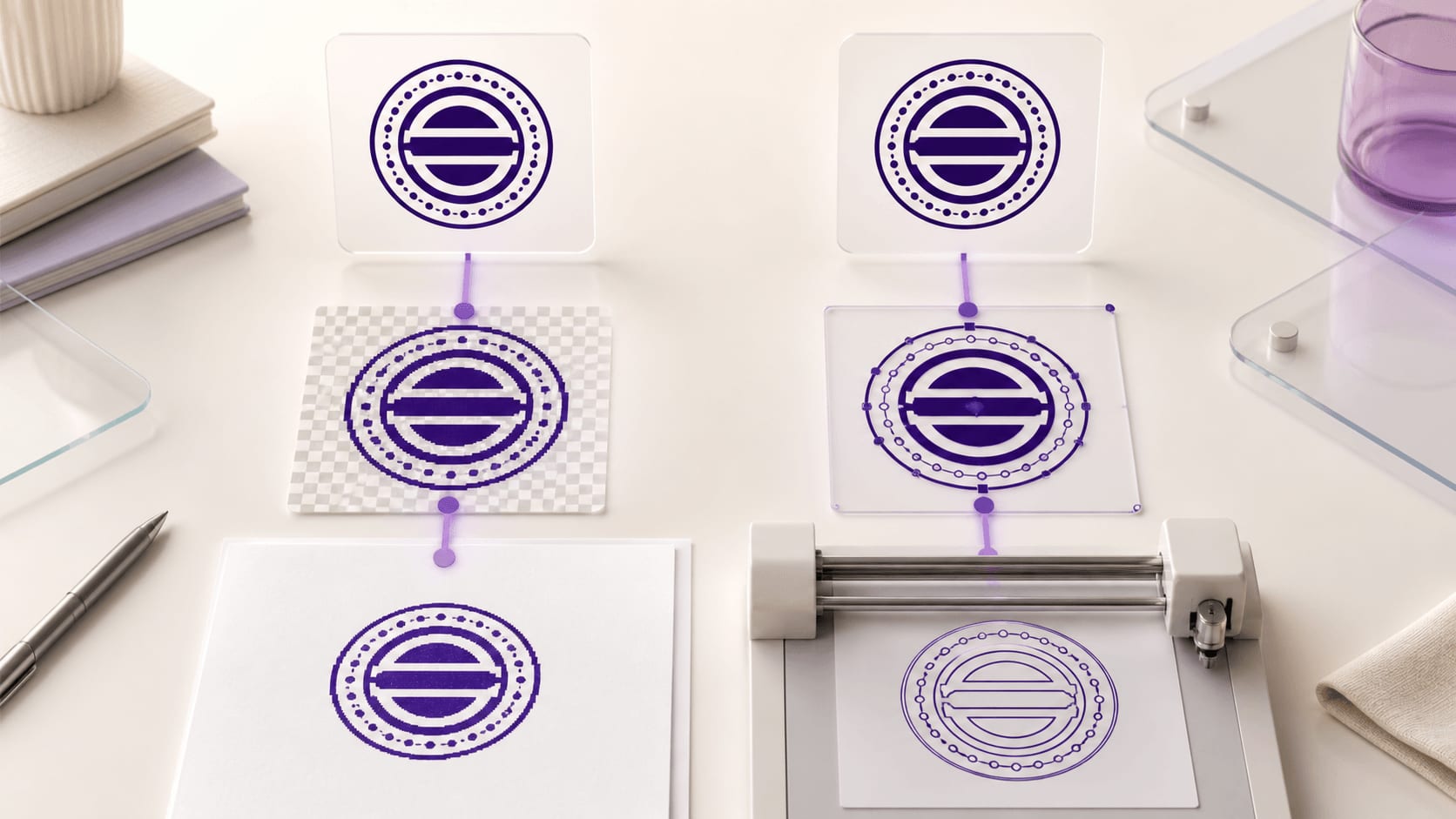
PNG is a raster format: the image is represented as a grid of pixels. It uses lossless compression and can include an alpha channel. That alpha information can make the area around a stamp fully or partly transparent.
For a digital stamp, transparency is useful because the visible ink can sit over a document without bringing along a white rectangular box. The page remains visible around the round, oval, or irregular edges. Partial transparency can also preserve soft antialiasing around curves, though edge colors still need inspection on different backgrounds.
“Lossless” does not mean “infinitely scalable.” It means PNG compression preserves the stored pixel data. If you enlarge the image far beyond its source dimensions, the application still has only the original pixels to work with. Edges may soften or reveal a blocky grid.
PNG is a finished visual asset, which is an advantage in routine use. A colleague can insert it without needing to understand fonts, paths, or layers. The same finality becomes a limitation when someone needs to change wording or alter individual shapes. Go back to the source design rather than editing pixels whenever possible.
Check that transparency is real
A checkerboard in an editor often indicates transparency, but the downloaded file is the evidence. Open the PNG in another application and place it over white, light gray, and a modest colored background. Look for a white box, pale fringe, dark halo, or stray pixels beyond the stamp.
Some image viewers display transparent areas against black or another preview color. That display alone does not prove the file has a black background. Insert the image into the destination document and inspect the result there before trying to remove a background that may not exist.
If the stamp includes light-colored ink, test it on the actual page color. Transparency preserves the background; it does not create contrast. A pale gray stamp that is visible on a dark preview may nearly disappear on white paper.
Keep the original transparent PNG. Saving it as JPEG removes alpha transparency because JPEG does not provide the same transparent-background behavior. Converting back to PNG later does not automatically reconstruct the missing transparent edge.
What an SVG stamp stores
SVG is an XML-based format for describing two-dimensional vector and mixed vector/raster graphics. Its vector lines, curves, shapes, and text can scale to different display sizes without being tied to one fixed pixel grid.
That model suits a stamp built from borders, paths, and clean lettering. A compatible application can render the same vector geometry at a small document size or a larger production size without turning a circle into a stair-stepped edge.
SVG can also contain or reference raster imagery. If a stamp includes a raster logo or bitmap texture, placing it inside an SVG container does not create new detail. The vector borders may scale cleanly while the embedded image still has pixel limits. Inspect the actual file rather than assuming the extension guarantees an all-vector design.
Font handling matters too. If text remains live and the receiving system lacks the font, appearance can change. A production-ready workflow may convert approved lettering to paths or package fonts according to the recipient's requirements. That choice affects editability, so keep an editable source separately.
Compare resizing, not just sharpness at one size
At the intended document size, a good PNG and an SVG may look nearly identical. The difference becomes clearer when the file is enlarged, reused at several sizes, or opened for production. Test both at the largest realistic placement, not at an absurd zoom that no reader will use.
For PNG, start with enough pixel dimensions for the largest expected job, then reduce it while keeping the aspect ratio. Avoid a workflow where a small copy is enlarged, saved, reduced, and saved again. Archive the original download and generate placement copies from it.
For SVG, open the file in the receiving application and check the whole design. Confirm text, masks, clipped elements, transparency, and texture render correctly. Scalability is useful only when the target software interprets the file as expected.
Do not use file size alone as a quality score. A simple SVG can be very small because it stores a few paths. A textured SVG can be larger. A high-resolution PNG can compress efficiently when it uses limited colors. Judge the visible result and workflow needs.
Use PNG for a stable office-document copy
A transparent PNG is often the least surprising asset for Word documents, presentations, form overlays, and internal instructions. It behaves like a picture: insert it, set a size, preserve the aspect ratio, and position it. That simplicity reduces accidental edits.
Give colleagues an approved PNG with a clear filename and the intended placement dimensions. Tell them not to copy it from an old document or email preview. Copies extracted from other files may be compressed, resized, or flattened against a background.
When a document will become a PDF, export a sample and inspect the PDF separately. Check edge clarity, transparency, color, and scale. A correct image inside the source document can still be affected by export settings or later page scaling.
If the stamp must be placed on many documents automatically, test the PNG through the actual automation. Confirm that transparency is preserved and that the script or template does not stretch the image to fill a box with different proportions.
Use SVG for flexible reuse and compatible handoff
SVG is a strong choice when a designer, print technician, or manufacturer needs clean paths and flexible scale. It can also serve as a durable source for creating new raster copies at different dimensions without repeatedly resampling an old PNG.
Compatibility still comes first. Some upload forms accept only common raster formats. Some office environments handle SVG well; others convert it or restrict it. Some production vendors prefer EPS, PDF, or another format. Ask for a current specification and provide the requested file instead of arguing from format theory.
Open the exported SVG outside the stamp editor. Look for substituted fonts, missing images, unexpected clipping, shifted text, or a changed canvas. If possible, let the intended recipient run a preflight before the deadline or production order.
Keep a reference PNG or PDF proof beside the vector file. The proof shows how the stamp should look even if the recipient's software opens the SVG differently. It is a visual target, not a replacement for the production artwork.
Understand the supporting formats in a download package
Before choosing a package, compare the current download options with the formats the receiving application or vendor can actually open. Paying for more formats does not remove the need to test the one that enters the real workflow.
EPS is commonly used in vector-oriented production workflows, but support and import behavior vary. Send it when the vendor requests it and inspect a proof. Do not assume every EPS export is easier to use than SVG simply because the format has a long print history.
PDF is useful for sharing a fixed visual proof and preserving page-scale information. A PDF can contain vector and raster content, so the extension alone does not reveal how every element is represented. Use it to communicate appearance and dimensions, then follow the vendor's artwork requirement.
JPG is convenient when a solid background is acceptable. It does not preserve a transparent area around the stamp, and its compression can create artifacts along hard, high-contrast edges. It is usually a secondary choice for a stamp intended to float over document content.
DOCX can be helpful as a ready-to-use office document, but it should not become the only archive of the artwork. Keep the original image or vector file outside the document so future users are not forced to extract or screenshot it.
Choose a file by the next action
- Insert at a fixed size in Word or slides: start with a transparent PNG; check transparency, aspect ratio, and the final document export.
- Overlay on a digital form: start with a transparent PNG; check background contrast and any pale or dark edge halo.
- Reuse at substantially different sizes: keep an SVG plus a practical PNG copy; check embedded raster elements and font handling.
- Send artwork to a production vendor: use the vector format the vendor requests; confirm dimensions, paths, line weight, and proof approval.
- Share a scale and appearance proof: use a PDF; check actual-size page settings and stated dimensions.
- Use the mark on a solid white background only: PNG or JPG may work; check compression artifacts and possible future background needs.
Conditional choices are more reliable than a single ranking. The best format is the one the next application can use without damaging the approved design or creating unnecessary work.
Avoid long conversion chains
Every conversion is a chance to flatten transparency, substitute a font, change dimensions, crop the canvas, or resample pixels. A common failure begins with SVG, becomes a screenshot, is pasted into Word, exported to PDF, copied from that PDF, and finally saved as JPEG. The last file may look like the original at a glance while containing none of its useful structure or clean edge detail.
Choose the shortest path from approved source to destination. If Word needs a PNG, export a PNG from the source rather than taking a screen capture of the SVG. If a vendor requests EPS, generate or download the supplied EPS and send the visual proof beside it. Do not route production artwork through an office document merely because that is where a colleague first saw it.
When conversion is unavoidable, compare before and after at the same size. Check canvas dimensions, transparent corners, type shape, line thickness, color, and the position of every element. Give the converted file a new name so nobody mistakes it for the unchanged master.
Be cautious with online converters when artwork contains confidential or regulated information. Review the service's terms and data handling before uploading, or use an approved local application. A stamp layout can include business identifiers or signatures that should not be sent to an unknown service for convenience.
Keep a small conversion log for important production work: source filename, source format, output format, application used, date, and person who checked the proof. This is not necessary for every casual document, but it is useful when several vendors or departments touch the same artwork and a later file no longer matches.
Inspect every export outside the editor
After exporting from the online stamp maker, open the file in at least one independent application. For PNG, check transparent edges and pixel dimensions. For SVG, check geometry, text, and embedded content. For PDF or office formats, verify page scale and placement.
Zoom out to the intended size, then zoom in enough to find broken edges or stray objects. Both views matter. Extreme magnification can make a sound raster file look bad, while a normal view can hide an export defect that appears during printing.
Confirm orientation and color. Make sure the stamp is not mirrored, rotated, or unexpectedly converted to black. If color carries an operational meaning, verify the recipient's process instead of assuming all screens and printers will match.
Finally, compare the export with the editor proof. The downloaded file is the deliverable. A perfect canvas cannot compensate for a missing layer or altered font in the file people will actually use.
Archive a clean master and named delivery copies
Use filenames that identify purpose without exposing private data. A simple pattern such as `north-harbor-approval-clean-38mm.svg` and `north-harbor-approval-word-38mm.png` separates the master-like vector from the office placement copy. Add a version or approval date when the content changes.
Do not overwrite the only approved file while testing texture or color. Save clean, textured, and background-specific versions separately. Record which one is approved for which workflow.
Store the source design or editable project with the exports. A file format solves delivery, not change management. When a phone number, department, or date rule changes, rebuilding from an old raster copy wastes time and risks visual drift.
Make the format decision before paying or downloading
Match the chosen format to the workflow you have already identified. Inspect the clean design at final size, and download only after spelling, dimensions, and transparency are settled.
For the transparent PNG vs SVG stamp decision, keep the rule grounded in use: PNG for a stable, convenient picture; SVG for compatible vector scale and handoff. Verify the receiving application, preserve a clean source, and test the exported file rather than trusting its extension.
That final check takes minutes and prevents the wrong file from becoming the version everyone copies.