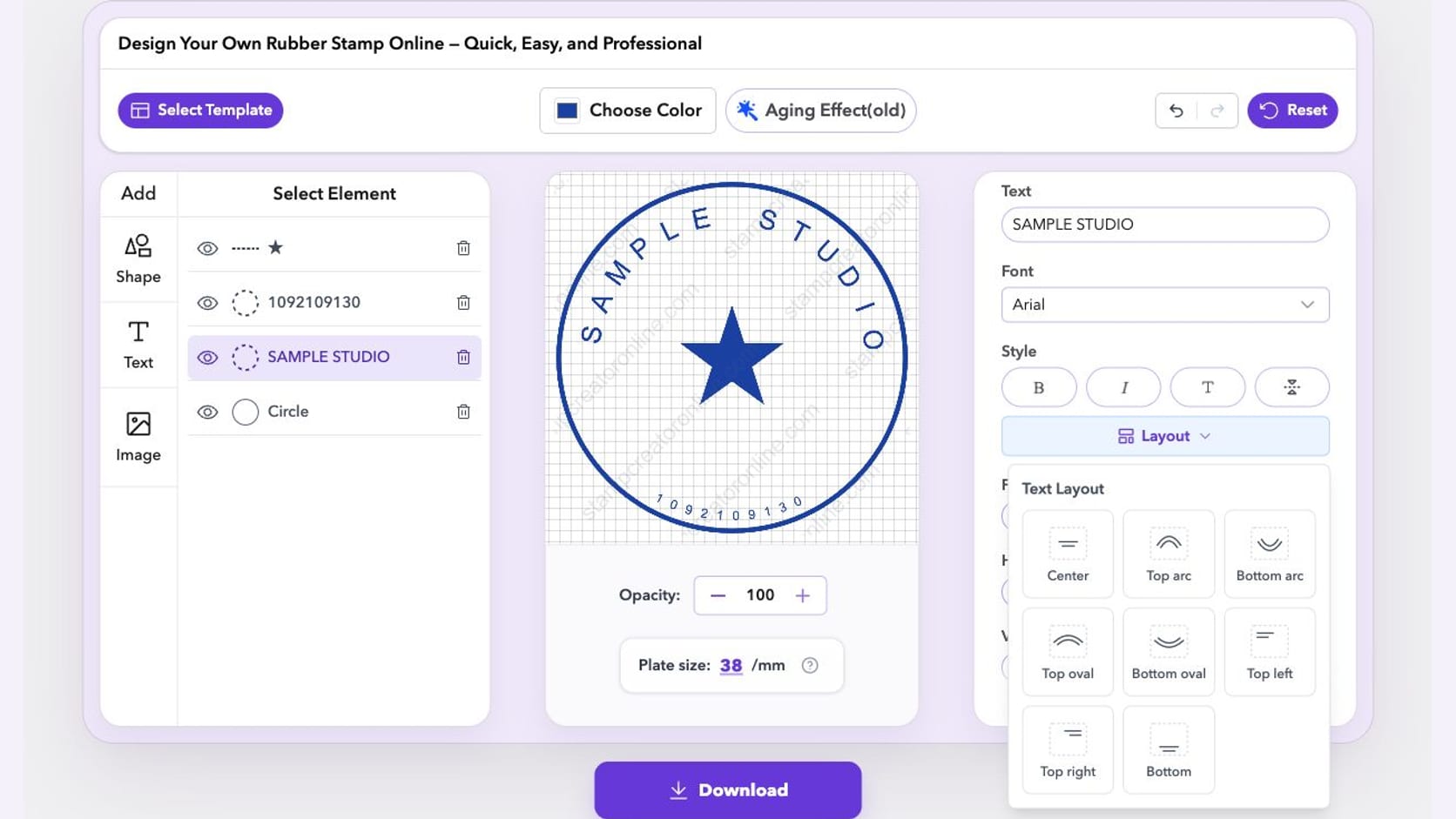
A small text change should not mean starting your stamp again. Using a stamp generator online should also let you finish an Arabic name, find the sign-in form, and put an unfinished design somewhere you can return to. Our recent updates address those moments. Editing and previewing remain free, and a free account can save up to 50 editable designs with watermarked previews.
The biggest fixes are easy to miss in a feature list: Arabic letters now stay joined around circular and oval layouts, the sign-in form appears above other open dialogs, and the download window gives its save controls room. Here is what those changes mean when you are working on an actual stamp.
Try a change without rebuilding your stamp
Perhaps the company name fits, but you want to try a different size or move it a little closer to the border. You should be able to experiment without carefully writing down every setting first.
Undo and redo give you that room. In the online stamp maker, use the arrows above the canvas to step back from a change, then forward again if you prefer it. The keyboard shortcuts work too: use Ctrl + Z on Windows or Cmd + Z on a Mac to undo. For redo, add Shift to the same shortcut. Text fields keep their own undo history. Click outside the text box before using the shortcut to undo a layout change. These controls are available during free editing.
The text settings also put style controls together and show layout choices visually. Instead of guessing what a layout name means, you can inspect the options before choosing one. If the settings continue below the panel, a scroll hint points you toward the remaining controls.
Try one adjustment at a time. Change the text size, inspect the result, and undo if the letters become cramped. This makes it easier to judge what helped, rather than changing several settings and trying to remember the original combination.
Arabic names stay joined on curved lines
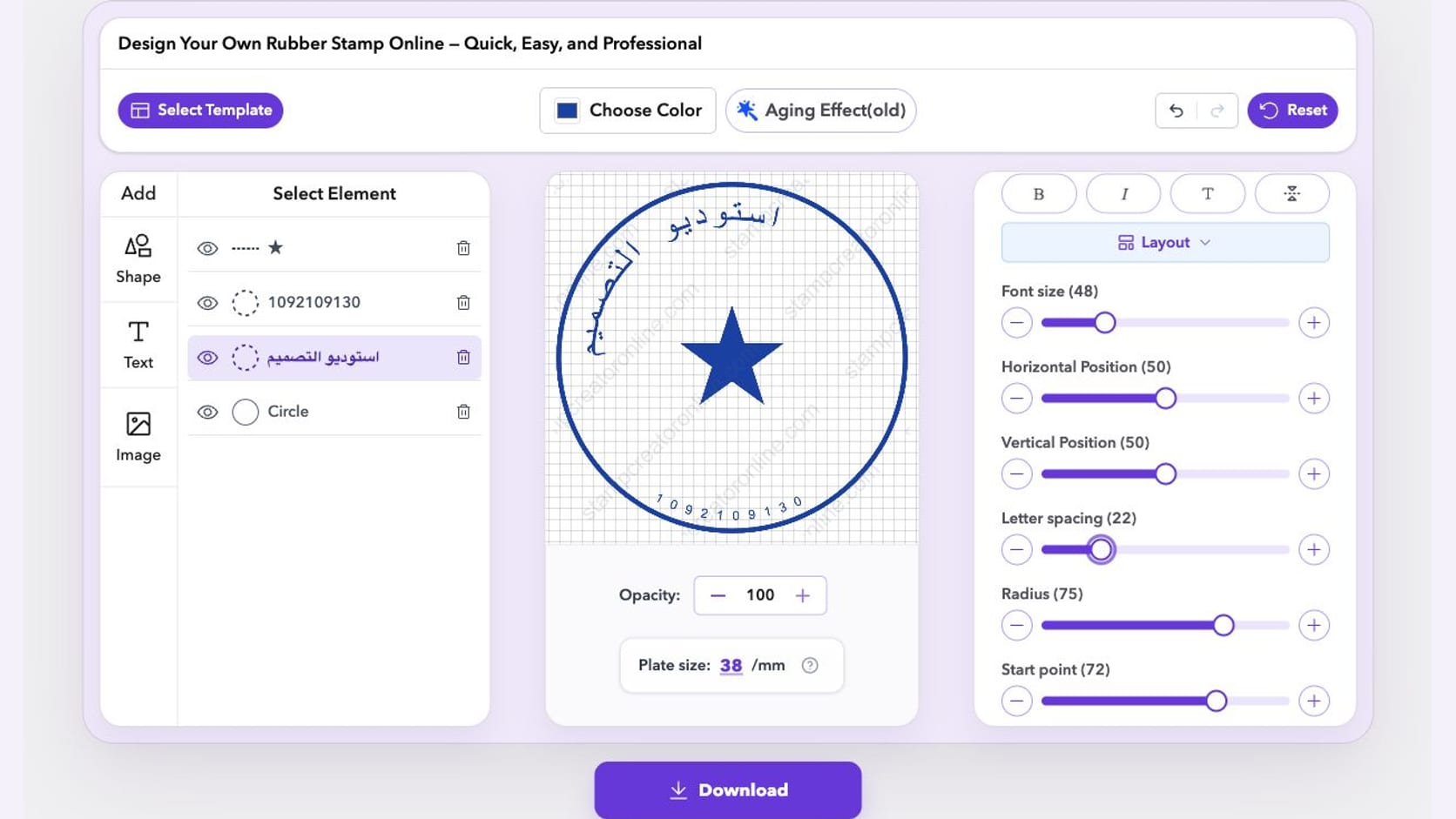
Arabic needs more than placing separate characters around a circle. Letters change shape according to their neighbors, and the reading direction matters. A name can look wrong even when you entered the correct text.
We updated circular and oval text so Arabic letters keep their joined forms along the curve. Straight text that begins in Arabic or Hebrew also follows a right-to-left direction. The purpose is practical: you can work with the name you need, rather than trying to repair its appearance by adding spaces between letters.
Enter the complete name, choose a font that contains its characters, and check the whole word. Then adjust the size and spacing around it. Long wording still needs enough room, and mixed-language designs deserve a careful read. The change improves how the letters are drawn; you still choose the wording and layout.
For a bilingual stamp, give each language enough space instead of squeezing both names onto one arc. Ask someone who reads the language to check the final wording, including any numbers or punctuation beside it.
Save the design before you decide to download
You may have the wording right without being ready to buy a file. Perhaps someone needs to check the spelling, or you want to finish the border tomorrow. That is a good time to save the editable design.
My Library is available with a free account and holds up to 50 designs. Its free previews carry a watermark, but you can reopen the design and continue editing its layers. Give it a name you will recognize later, especially if you make similar stamps for different departments.
We also fixed two interruptions in that path. When sign-in opens from the download window or template picker, the form now sits above the existing dialog. Previously it could appear underneath, leaving the form out of reach. The download window's layout was also adjusted so its save controls are not cut off at the bottom.
Open Download and look for Save Template or My Library beneath the file choices. If you are signed out, follow the sign-in step. Saving a design does not require choosing a paid download package first. Use My Library when you want to return later; undo is for stepping through edits while you work.
When you return, reopen the saved design and check its name and main text before making another version. That helps you avoid revising the wrong department's stamp when several layouts look alike.
Choose readable lettering before paying
A font can look attractive in the large preview and feel crowded at the size you need. A long name, a narrow ring, or a small reference number can make that difference obvious.
Our new guide to choosing a stamp font that prints clearly explains what to inspect before committing to a download. It uses examples from the editor, including the differences between compact lettering and script on a curved line. The guide is free to read.
Start with the longest line in your own design. Check that each letter is recognizable and that the text stays clear of the border. If a decorative font makes the name harder to read, try a simpler one before shrinking it further. Keep this check separate from adding worn-ink effects, so you can judge the lettering itself.
What stays free in the stamp generator online
The editing improvements described here are available without buying an upgrade. You can try the layouts, change text and borders, use undo and redo, and inspect the preview. Signing in with a free account adds the 50-design library described above.
A saved design and a downloaded file serve different purposes. The library keeps your work editable; a paid export gives you the finished file package you choose. Paid plans also offer a larger library with clean images. Separate subscriber tools have their own download access rules. Free editing does not mean every export or tool download is free.
For your next visit, reopen one design and try a small change to its longest text line. Check the complete name, undo the change if needed, then save the version you want to keep. You can settle those details before deciding whether you need a downloadable file.